
TL;DR:
- Troubleshooting electronics relies on a structured process, from identifying symptoms to checking power and updates.
- EU law grants consumers the right to repair and access to spare parts before choosing replacements.
- Most device issues are resolved through software updates and basic connectivity checks, not hardware replacement.
Your smart TV freezes mid-show. Your router drops the connection right when you need it most. Your laptop won't wake from sleep. These moments are frustrating, but they don't have to mean an expensive repair bill or a rushed replacement purchase. Most consumer electronics failures follow predictable patterns, and a structured troubleshooting approach resolves the majority of them without professional help. This guide walks you through every stage, from gathering the right information before you start, to understanding your legal repair rights under EU law, so you can fix problems faster and make smarter decisions about your devices.
Table of Contents
- Prepare for troubleshooting: What you need before you start
- Follow the structured troubleshooting workflow
- Resolve software and connectivity issues
- EU right to repair: Know your options before replacement
- A smarter approach: What most guides miss about troubleshooting in 2026
- Find solutions and accessories for your electronics
- Frequently asked questions
Key Takeaways
| Point | Details |
|---|---|
| Structured workflow | Troubleshoot by isolating symptoms, checking power, network, and software before moving to hardware fixes. |
| EU repair rights | New regulations give European consumers strong repair and spare parts options, reducing unnecessary device replacement. |
| Start with software | Restarting devices, updating operating systems, and clearing errors solve most everyday tech issues. |
| Preparation matters | Gathering device information, error codes, and tools before troubleshooting ensures faster problem resolution. |
| Choose repair-friendly brands | Opt for brands with accessible repair options and clear support for EU right-to-repair rules for best long-term value. |
Prepare for troubleshooting: What you need before you start
Before touching a single cable or pressing a reset button, preparation is everything. Jumping straight into fixes without context wastes time and can sometimes make things worse. The first question to answer is always: is this problem isolated to one device, or does it affect your entire setup?
If your TV has no picture but your laptop works fine on the same Wi-Fi, the issue is device-specific. If nothing in the room connects to the internet, the problem is almost certainly your router or ISP. Confirming this scope narrows your focus immediately. As a smart home troubleshooting guide explains, a structured troubleshooting workflow starts by confirming scope, gathering model info, and noting error messages before anything else.
Here is the core information to collect before you begin:
- Device model and serial number (usually on a label on the back or bottom of the device)
- Current firmware or software version (found in Settings > About on most devices)
- Exact error messages or codes displayed on screen
- When the problem started and whether anything changed beforehand (new app, power outage, update)
- Whether the issue is consistent or intermittent
For basic tools, you will likely need a small screwdriver set, a spare power cable or adapter to test with, and access to a working Wi-Fi connection for downloading updates. A notepad, physical or digital, is genuinely useful here.
Pro Tip: Write down every error code and symptom before searching for solutions. This saves you from repeating steps and gives you a clear record if you need to contact support later.
The table below shows what to gather based on the type of device you are troubleshooting:
| Device type | Key info to collect | Common first check |
|---|---|---|
| Smart TV | Model, firmware version, HDMI input | Restart and check input source |
| Laptop or PC | OS version, error code, RAM usage | Check for pending updates |
| Router or modem | ISP status, firmware, connected devices | Restart and check ISP outage |
| Smart home device | App version, hub firmware, Wi-Fi band | Re-pair to app or hub |
| Kitchen appliance | Model number, error display code | Check power supply and reset |
If you are unsure whether a device is worth fixing or replacing, reading up on how to choose electronics for your home can help you set realistic expectations. And if you want to avoid common pitfalls when buying replacements, our guide to safe online electronics shopping is a practical starting point. The Which? fix slow tech checklist is also worth bookmarking for quick reference.
Follow the structured troubleshooting workflow
With your preparation complete, now move into step-by-step troubleshooting. A repeatable process keeps you from going in circles and helps you identify exactly where the fault lies.
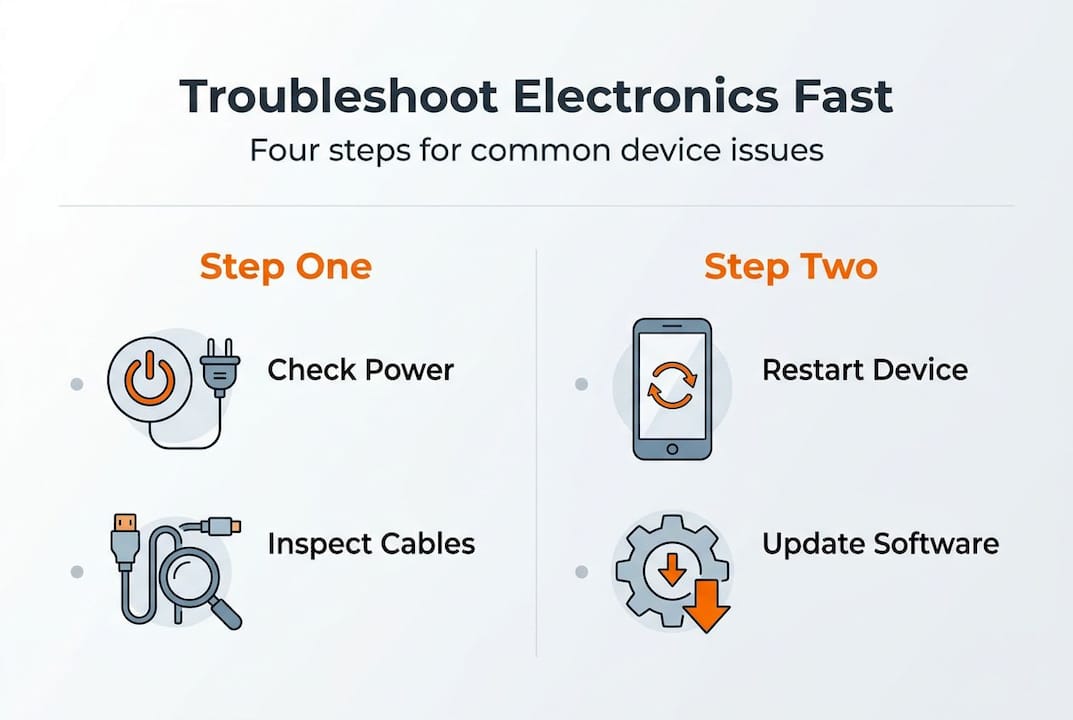
Here is the workflow to follow in order:
- Identify the symptom clearly. Is the device not turning on, behaving erratically, or showing a specific error? Be precise.
- Isolate the fault. Test the device with different cables, outlets, or on a different network to rule out external causes.
- Check power and connectivity. Confirm the power source works. Test the router, cables, and signal strength.
- Update firmware and software. Outdated firmware (the built-in software that controls hardware) is a surprisingly common cause of bugs and crashes.
- Perform a soft reset or factory reset. A soft reset restarts the device without erasing data. A factory reset wipes settings and is a last resort before escalating.
- Escalate if needed. If none of the above works, contact the manufacturer or invoke your EU repair rights (covered in the next section).
A practical troubleshooting workflow moves from symptom identification through device, network, input, and power checks, then firmware and recovery steps before escalating to professional repair.
Safety first: Always unplug a device from the power source before opening any casing or inspecting internal components. This protects both you and the device.
It helps to understand the three main fault categories:
| Fault category | Common causes | First action |
|---|---|---|
| Hardware | Physical damage, worn components | Isolate and test with replacement parts |
| Network or input | Router issues, cable faults, signal drop | Swap cables, restart router, test signal |
| Software | Outdated firmware, corrupted files, bugs | Update, clear cache, reset app or OS |

Pro Tip: Restart both your router and the affected device before any deeper diagnosis. Restarting devices and updating software resolves the majority of sluggish or buggy household tech problems before hardware replacement becomes necessary.
For a broader view of how to approach device purchases with longevity in mind, our guide to electronics for modern homes covers what to look for. You can also follow our purchase workflow checklist when deciding whether repair or replacement makes more sense. And if you want to extend the life of what you already own, our tips on how to maintain device longevity are directly relevant here.
Resolve software and connectivity issues
Once you have isolated the issue, it is time to address software and connectivity, the cause of most day-to-day problems. Hardware failures are actually less common than people assume. Software glitches, outdated drivers, and weak network signals account for the vast majority of device complaints.
Here are the most effective software fixes to try first:
- Restart the device completely. Not sleep mode, a full power-off and restart. This clears temporary memory and resets active processes.
- Check for and install OS or firmware updates. Go to Settings > System > Update on most devices. Manufacturers regularly patch bugs that cause freezing, crashing, or connectivity drops.
- Update or reinstall drivers. On laptops and PCs, outdated graphics, audio, or network drivers cause a surprising range of symptoms.
- Clear the app cache. On smart TVs and Android-based devices, a bloated cache slows performance noticeably. Go to Settings > Apps > select the app > Clear Cache.
- Check available storage. Devices with less than 10% free storage often behave erratically. Delete unused apps or files.
For connectivity specifically, work through this checklist:
- Confirm your router is online and other devices can connect
- Move the device closer to the router to test signal strength
- Switch between 2.4 GHz and 5 GHz Wi-Fi bands if your router supports both
- Replace the Ethernet cable if using a wired connection
- Forget and reconnect to the Wi-Fi network
Statistic callout: Restarting devices and updating OS or drivers resolves most software-related issues before any hardware diagnosis is needed, according to Which? technology experts.
Pro Tip: Boot your laptop or smart device into Safe Mode (a stripped-down operating environment with only core functions active) to test whether a third-party app is causing the problem. If the device works normally in Safe Mode, the fault is software-side, not hardware.
For more guidance on getting the most from your devices day to day, our smart electronics tips resource covers practical habits that prevent many of these issues from occurring in the first place. If you are new to managing home tech, our consumer electronics basics guide is a solid foundation.
EU right to repair: Know your options before replacement
If software fixes do not solve the problem, European law gives you strong alternatives before considering replacement. Many consumers are unaware of how much protection they now have.
EU Directive (EU) 2024/1799, effective from July 2026, establishes a formal right to repair for consumers across EU member states. This is a significant shift. Manufacturers of covered devices are now legally required to offer repair services, provide spare parts within 5 to 10 days, and share repair information with independent repairers. The EU right-to-repair framework also requires that OS updates remain available for a defined period, so your device stays functional longer.
You no longer have to accept a forced replacement for covered devices. EU law gives you the right to request repair at a fair price.
Here is what the directive covers in practice:
| Feature | What it means for you |
|---|---|
| Manufacturer repair obligation | Covered brands must offer repair, not just replacement |
| Spare parts availability | Parts must be available within 5 to 10 business days |
| Repair information access | Independent repairers can access technical guides |
| OS update longevity | Software support guaranteed for a defined product lifespan |
| Online repair platform | EU-wide platform to find certified repair services near you |
To request a repair under these rules:
- Check if your device falls under the directive's scope (smartphones, tablets, laptops, TVs, and several home appliances are included)
- Contact the manufacturer directly and reference your right to repair under EU Directive 2024/1799
- Use the EU's online repair platform to locate certified local repairers
- Keep your purchase receipt and warranty documentation ready
The incoming EU right-to-repair requirements also include ecodesign regulations that push manufacturers to design products that are easier to open, repair, and upgrade. This means newer devices you buy today are increasingly built with repairability in mind. For tips on making your devices last longer, our guide on how to maintain your electronics pairs well with these legal protections. You can also explore our sustainable electronics guide for a broader view of how buying decisions connect to long-term value.
A smarter approach: What most guides miss about troubleshooting in 2026
Most troubleshooting guides treat the process as purely technical. Follow these steps, fix the device, move on. But in 2026, there is a bigger picture that most articles ignore entirely.
The combination of structured troubleshooting and EU legal protections has fundamentally changed the repair equation for European consumers. You now have two powerful tools working together: a repeatable process to fix issues yourself, and a legal framework that forces manufacturers to support you when you cannot. That is genuinely new, and most guides have not caught up with it.
Our perspective is this: check repair rights and manufacturer support before you buy, not after something breaks. Brands that publish repair manuals, sell spare parts directly, and participate in the EU repair platform are making a statement about product quality. Choosing those brands is a smarter long-term decision than chasing the lowest price on a device that becomes a landfill item after one fault. Understanding the EU electronics benefits of buying from compliant retailers adds another layer of protection to every purchase you make.
Pro Tip: Before buying any new device, search for its repairability score and whether the brand sells spare parts independently. This one habit will save you significant money over time.
Find solutions and accessories for your electronics
If your troubleshooting points to needed upgrades or accessories, discover what OnlineStore24 offers across a wide range of brands and device categories.

Whether you need a replacement component, a network upgrade, or a new device entirely, our catalog is stocked with EU-compliant products shipped from European warehouses. Browse Kenwood accessories for kitchen appliance support, or upgrade your home network with a reliable Trendnet access point if connectivity was the root cause. For a full range of electronics solutions across every category, our store offers fast delivery, secure payment, and products sourced from trusted European distributors. We make it straightforward to act on what your troubleshooting reveals.
Frequently asked questions
What is the first step in troubleshooting a consumer electronic device?
Start by identifying the exact symptom and confirming if the issue affects a single device or your whole setup. This scope confirmation is the foundation of any effective troubleshooting workflow.
How do EU right-to-repair rules help consumers with broken electronics?
EU rules let you request repair from manufacturers, guarantee access to spare parts within 5 to 10 days, and reduce forced replacements on eligible products. EU Directive 2024/1799 makes these protections legally binding across member states.
Should I try software fixes before replacing hardware?
Yes, most issues are resolved by restarting devices, updating software or drivers, and clearing simple errors before considering hardware replacement. Restarting and updating resolves the majority of common tech complaints according to Which? experts.
How can I safely check for power or connectivity issues?
Use a known working outlet, check cables and router status, and test connections with other devices to rule out simple faults. This power and connectivity check should always come before software or hardware diagnosis.